How ArcSite Connects to QuickBooks, Invoicing, and Customer Financing


You sold the job. The customer signed on your tablet at the kitchen table. Then you get home and the second shift starts: retyping the estimate into QuickBooks, sending the deposit invoice, and waiting to hear whether the homeowner who loved the design can pay for it.
That office work after the sale is where money slips through. A deposit nobody billed. A change order that never reached the books. A big job that stalled because the customer couldn't pay it all at once. One landscaping owner told us he planned to copy every approved estimate into QuickBooks by hand so he could invoice from there. A builder said his team does the work twice, then checks QuickBooks against their invoicing app to make sure the two match.
ArcSite connects the proposal you send from the field to the money side of your business: payments, invoices, QuickBooks Online, and financial partners like Sunlight and Wisetack. Each piece below picks up where the last one stops, from the driveway to the books.
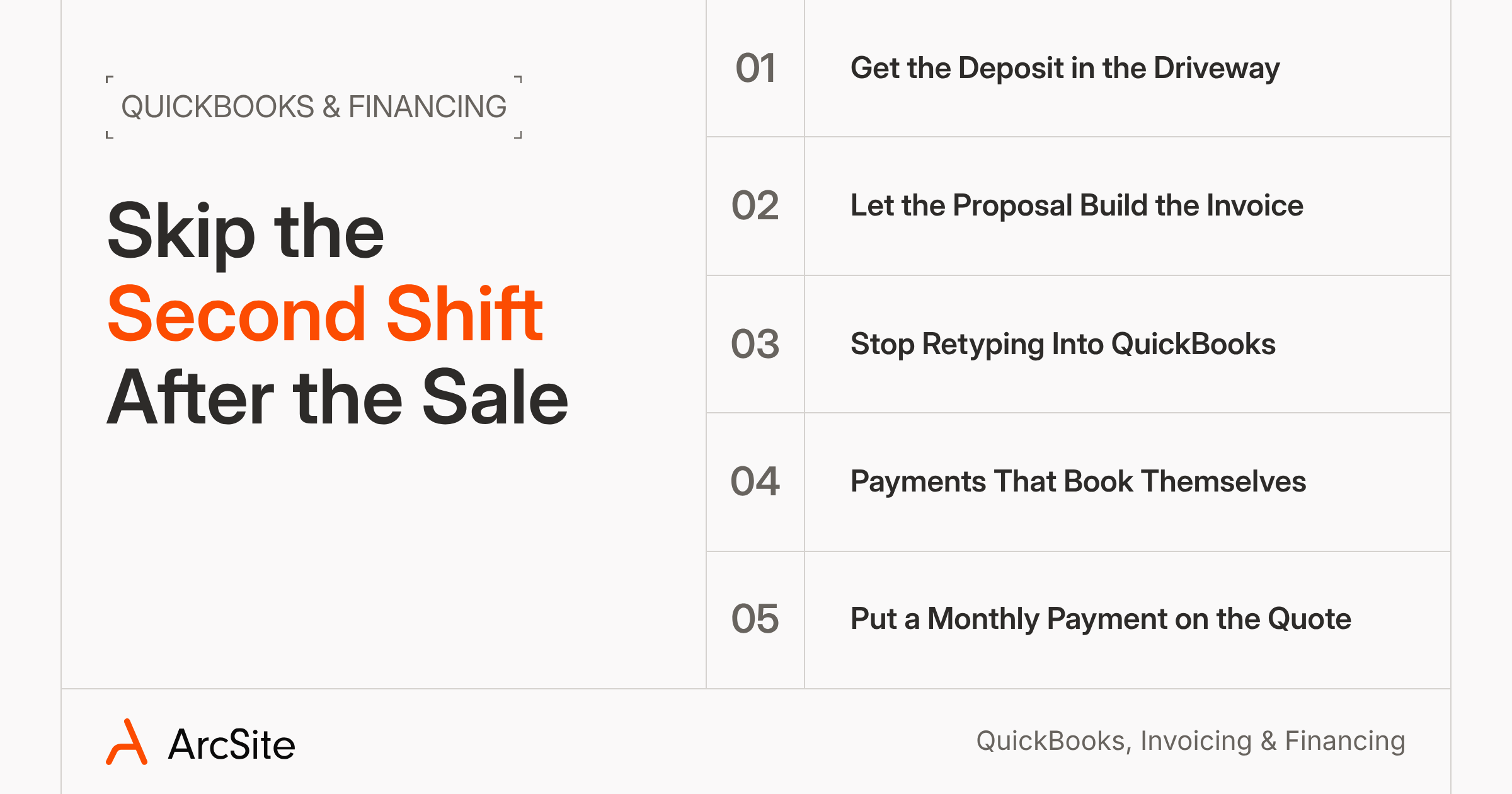
Collect the deposit before you leave the driveway
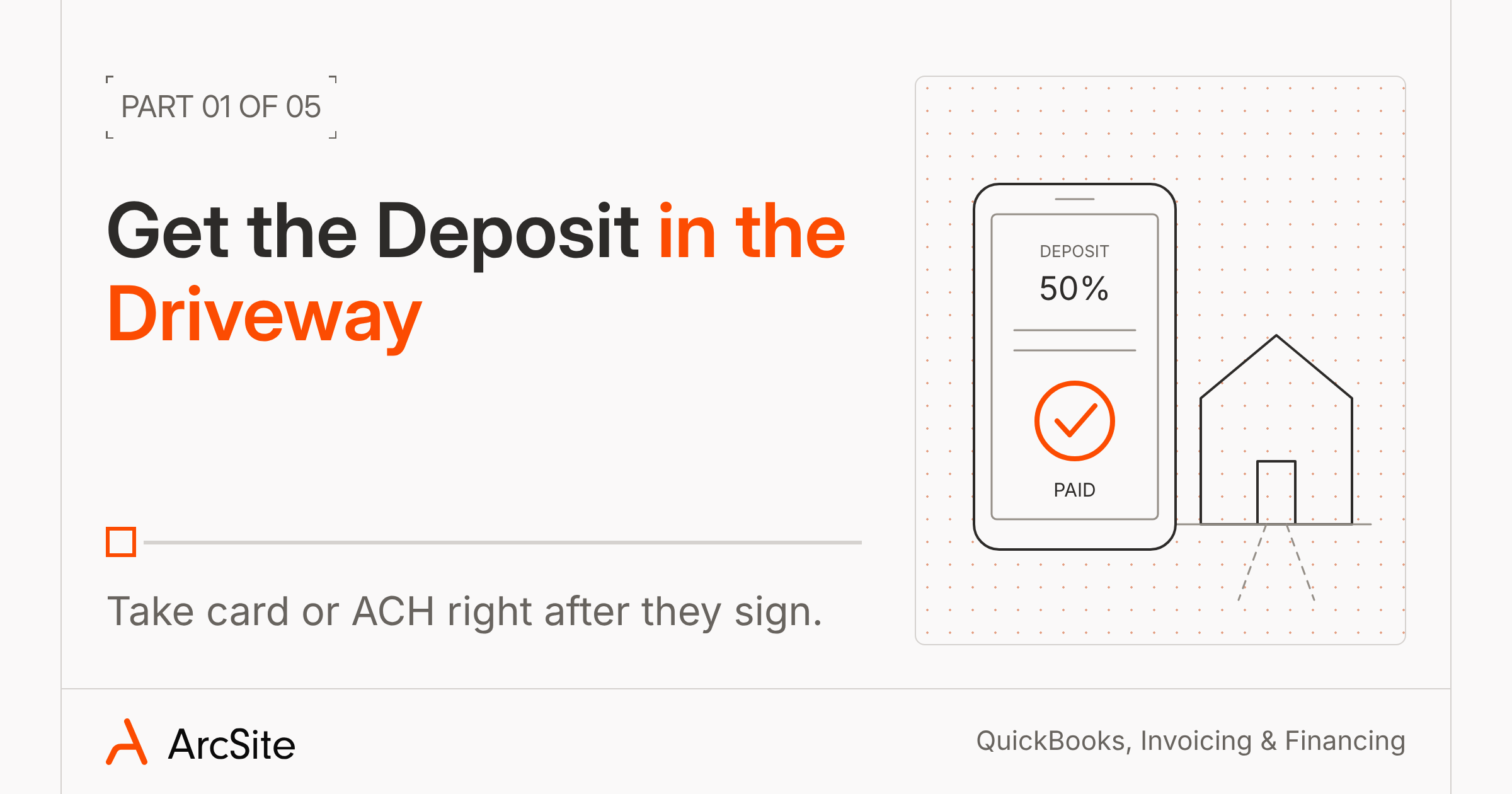
When the customer approves the proposal, they can pay on the spot by credit card or ACH (a direct bank transfer), right on your phone or tablet. You decide what to ask for: a deposit, a progress payment, or the full amount. ArcSite Payments ties each payment to the job, so you're not matching a bank deposit to a customer name a week later.
If card fees eat into your margin, turn on the platform fee. It adds the card processing fee to the customer's total as its own line item. The deposit also gives you a clean go signal: once it clears, order the materials and put the crew on the schedule.
Let the signed proposal build the invoice
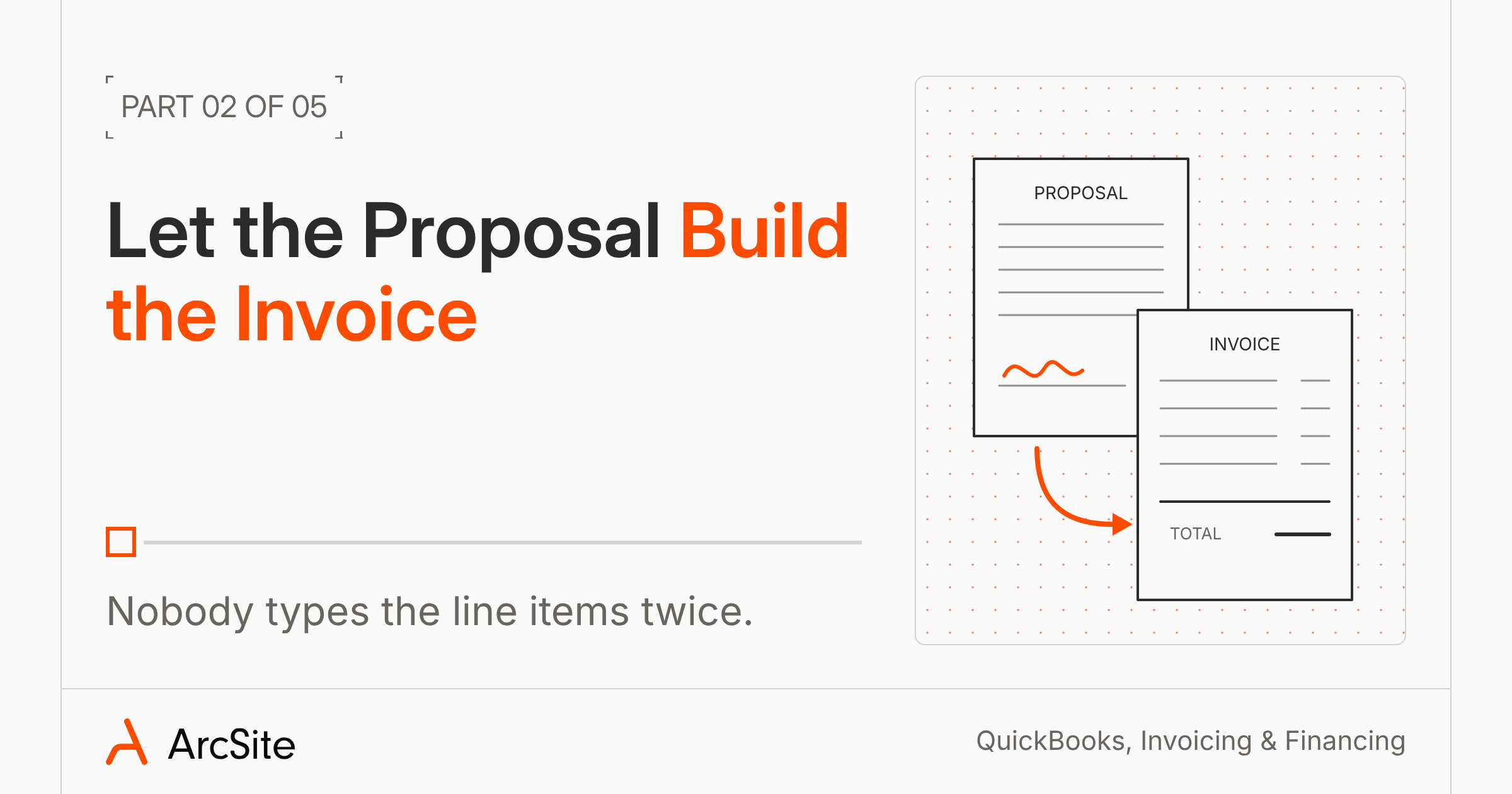
Once the customer signs, ArcSite turns the approved proposal into an invoice. Nobody types the line items twice, and the deposit, progress, and final payments each get an invoice tied to the job. You can see every invoice in one place, sorted by sent, paid, and overdue, so your follow-up calls start with the right customer.
Jobs don't always stay inside the original scope. Send a standalone invoice for a final balance, a service fee, or extra work, or send a change order when the scope grows. If the customer pays by check or cash, record it on the invoice and the balance stays right.
Send estimates and invoices to QuickBooks without retyping
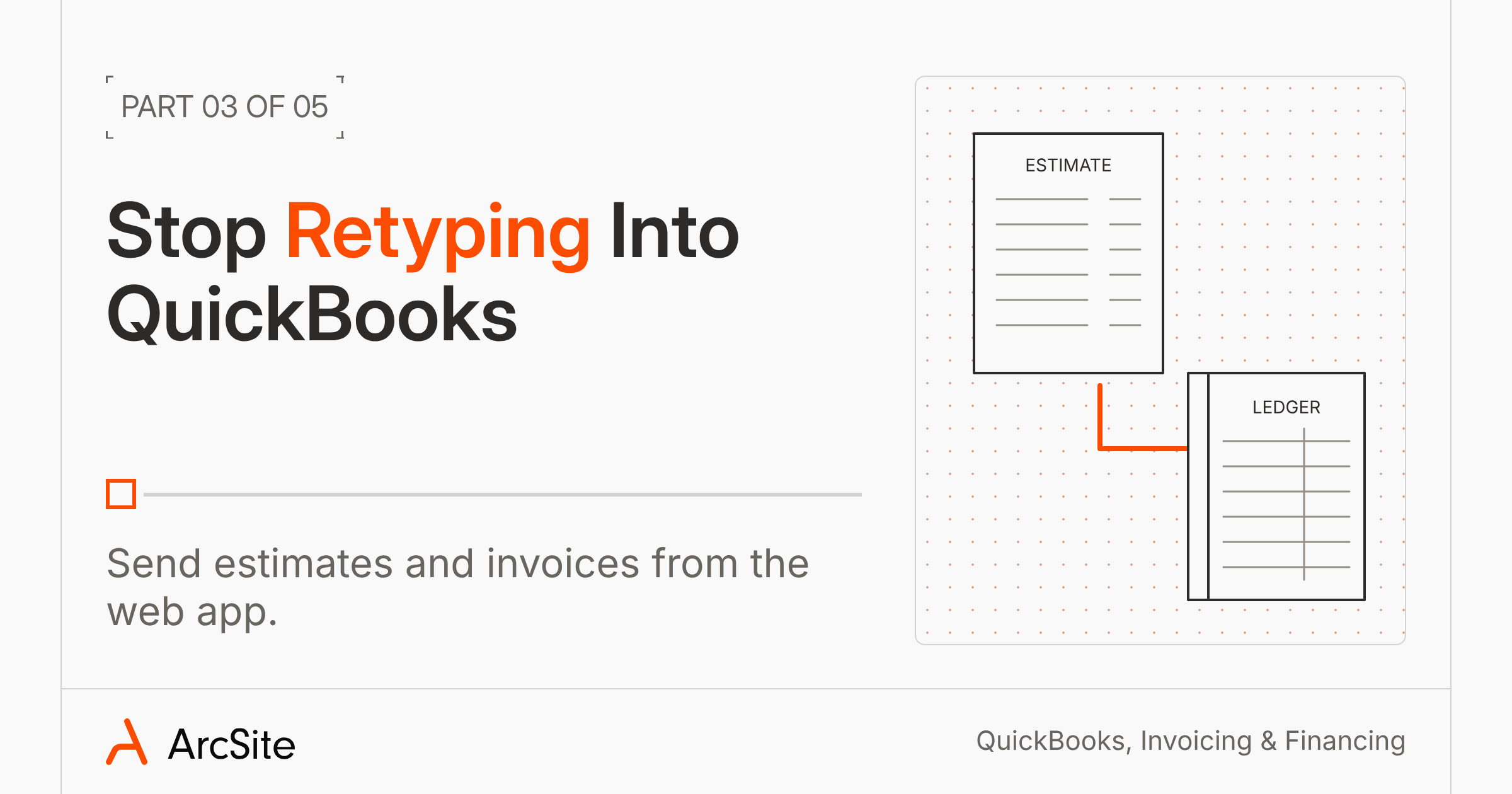
For most contractors, QuickBooks is where the books live. ArcSite connects to QuickBooks Online (QuickBooks Desktop isn't supported). In the ArcSite web app, open a drawing's Takeoff & Estimate tab and send it to QuickBooks as an estimate or an invoice. ArcSite finds the customer in QuickBooks by email, or creates a new one, and carries over each product line, any discount or markup, and the tax.
Two settings are worth a few minutes during setup. First, match your ArcSite products to your QuickBooks items. Each line then shows up under the right item name, and if an item tracks inventory, QuickBooks lowers the count when you send the invoice. Second, choose how jobs file in QuickBooks. Filing by client name groups every job for a repeat customer together. Filing by project name gives each job its own customer record. If you pay commissions, you can also send selected project details into the invoice's private note so your bookkeeper sees who sold the job.
The connection runs one way, from ArcSite into QuickBooks. QuickBooks stays your record, and ArcSite stays the place the job starts.
Turn on Payments and skip the QuickBooks push
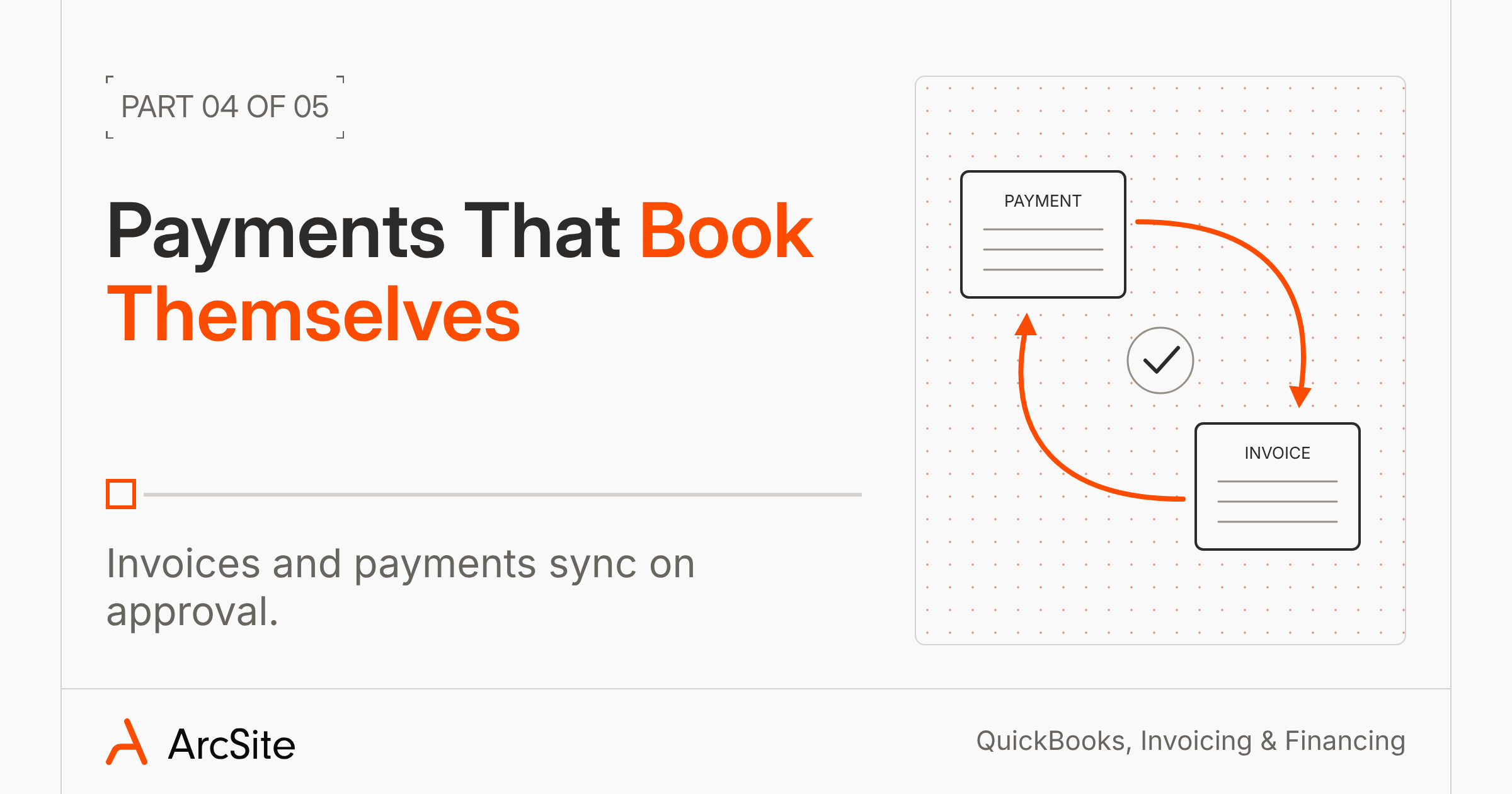
With ArcSite Payments and QuickBooks both connected, you don't press a send button at all. When a customer approves a proposal that requires payment, ArcSite creates the QuickBooks invoice. As payments come in, ArcSite records each one against that invoice. If the customer approves a change order, ArcSite updates the linked QuickBooks invoice with the new line items and price.
Your bookkeeper sees the same numbers your rep sold, and nobody re-enters them. One thing to know: on projects using this setup, the Send to QuickBooks button goes away, since ArcSite handles the sync for you.
Put financing on the proposal
Bigger jobs stall when the full price lands at once. A homeowner who loves the design may still need a payment plan before they sign. ArcSite works with financial partners like Sunlight and Wisetack, so you can offer financing on the proposal itself. (If you're still deciding whether to offer it, read Should Contractors Offer Financing?)
An admin signs up with the lender from the ArcSite web app under Settings > Integrations. After that, you pick the financing partner from the payment method dropdown on each proposal. Each proposal uses one partner.
With Sunlight, you can add up to three loan plans to the proposal, each showing an estimated monthly payment, APR, and term. The homeowner taps Start Application from the proposal and finishes the credit application on Sunlight's site. Sunlight financing is available on the Estimate plan and up.
Wisetack covers projects from $500 to $25,000. You can prequalify a customer before you send the proposal, so you know how much they can finance while you're still building the scope. With either partner, the lender pays you and the homeowner pays back the lender.
Where to start
You don't need every piece on day one. Start with the one that eats the most of your week. If retyping is the problem, connect QuickBooks Online and match your products. If chasing deposits is the problem, turn on Payments, and the QuickBooks sync comes with it. If big quotes keep stalling, connect a financial partner and put a monthly payment on your next proposal.
An admin sets up each one in the ArcSite web app, and none of it changes how your reps draw and quote in the field. Set up one piece this week, and your next signed job reaches the books without a second shift.
Categories
FAQs
Yes. ArcSite connects to QuickBooks Online. You can send an estimate or invoice from the ArcSite web app, or turn on ArcSite Payments so invoices and payments sync on their own. QuickBooks Desktop isn't supported.
Yes. With ArcSite Payments, customers can pay a deposit, a progress payment, or the full amount by credit card or ACH right after they approve the proposal, on your phone or tablet.
ArcSite works with financial partners like Sunlight and Wisetack. You choose one partner per proposal, and the homeowner applies from the proposal link.
Not for payments collected through ArcSite Payments. With Payments and QuickBooks connected, ArcSite creates the QuickBooks invoice when the customer approves and records each payment against it.
The manual Send to QuickBooks option is in the ArcSite web app. With ArcSite Payments turned on, you don't need it: the sync happens when the customer approves the proposal.
Related posts